How to Safely Test Your Email Tracker (Without False Opens)
Executive Summary
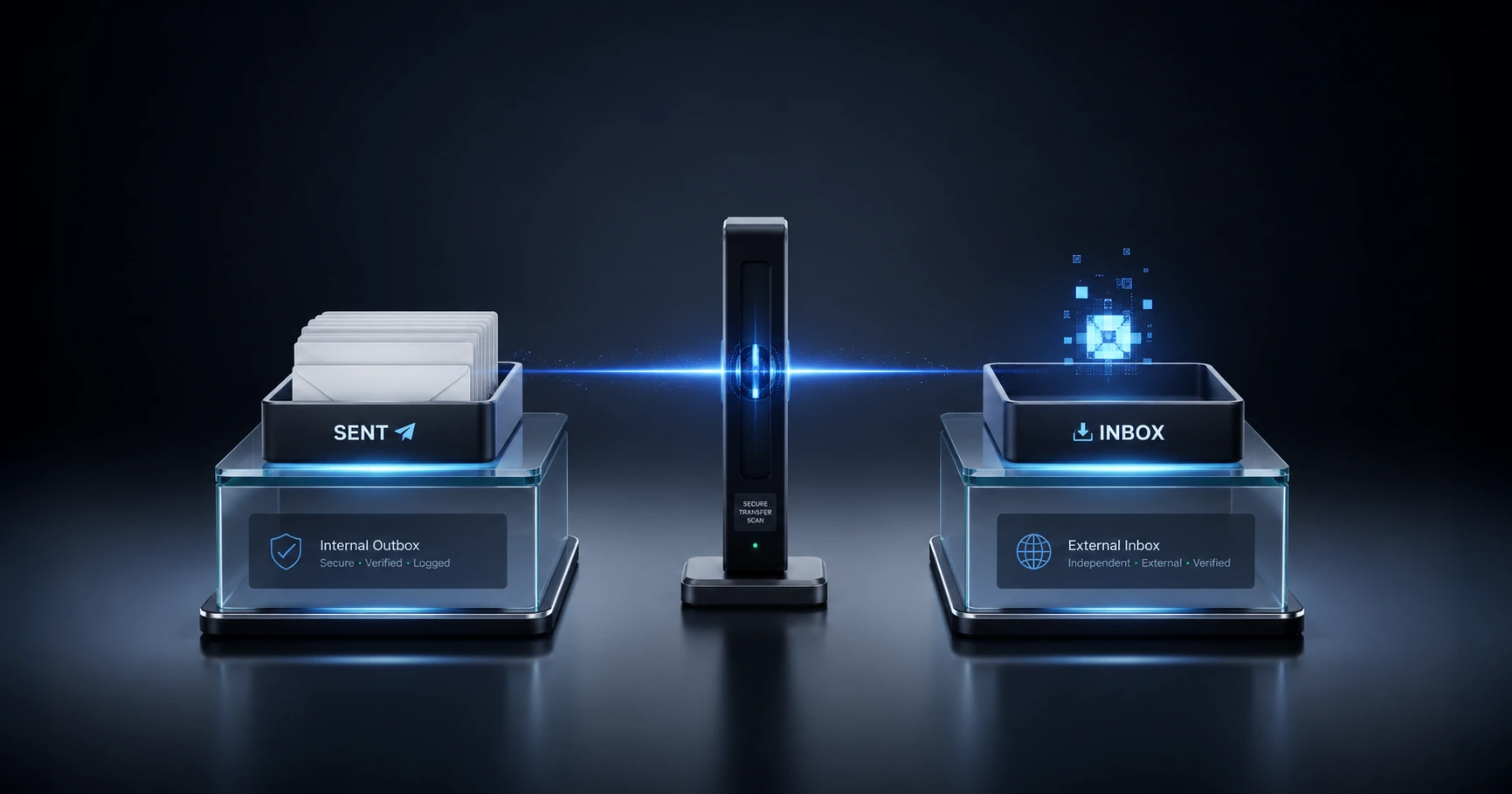
Testing an email tracker by opening your own "Sent" folder will trigger a legitimate open event, dirtying your timeline. Because a self-open is technically a valid server request, truthful tracking engines must log it. To test your setup safely, you must send the pixel to a controlled external inbox, or utilize MailPing's detailed network logs to easily identify and dismiss your own IP address.
The "Self-Open" Phenomenon Explained
A "self-open" occurs when the sender unintentionally triggers their own tracking pixel. To understand why this happens, you have to remember that a tracking pixel is simply an invisible 1x1 image hosted on a server. It does not magically "know" who is looking at it; it only knows that an email application has requested the image to be displayed.
When you send an email and then immediately go to your "Sent" folder to review what you wrote, your email client renders the message on your screen. To do this, it must download all the images in the email, including your invisible tracking pixel. To the tracking server, this request looks exactly like a legitimate open. A truthful, highly accurate tracking engine will log this event because technically speaking, it is a valid network request.
Webmail vs. Desktop Clients (The Delay Factor)
Depending on the email software you use to send your message, a self-open might register immediately, or it might take a few hours to appear on your timeline.
If you use a desktop client like Mozilla Thunderbird or Microsoft Outlook, the software fetches the image directly from the server the exact second you click on the email in your sent box. The self-open is logged instantly.
However, if you are using the Gmail Web Application, Google relies heavily on internal caching to save bandwidth. When you view your sent folder, Gmail might display a cached, text-only version of the email temporarily, delaying the request for the tracking image. In this scenario, your self-open might not register immediately, but it will eventually appear on your timeline once Google refreshes its cache.
The Proper Diagnostic Testing Protocol
Because opening your sent folder inevitably creates false metrics, you must establish a strict testing protocol. Never test a tracking link by viewing the message you just sent. Instead, perform a controlled diagnostic test.
- Create a Burner Inbox: Set up a secondary, free email account (like a personal Yahoo or Gmail account) entirely disconnected from your business infrastructure.
- Send the Pixel: Generate a tracking link and send it from your primary business account to this secondary inbox.
- Change Networks (Optional but Recommended): For the most accurate test, open the secondary inbox on your mobile phone while disconnected from your office Wi-Fi. This simulates a genuine external client open.
- Verify the Logs: Check your tracking dashboard. You should see a clean open event with the mobile carrier's network details.
Using MailPing to Identify Self-Opens
Even with the best protocols, accidents happen. You might need to review an old proposal in your sent folder, unintentionally triggering the pixel. With legacy trackers, this ruins your data because they only provide a generic "Email Opened" notification.
This is where the MailPing difference becomes critical. Because MailPing provides transparent, edge-level network logs, you can easily audit your timeline. If you see an open event that occurred right after you checked your outbox, you simply look at the logged data. If the Network (ASN) and the masked IP address match your office or home network, you can instantly identify it as a self-open and confidently ignore it, keeping your analysis of client engagement perfectly clear.
Explore the Email App Setup Cluster
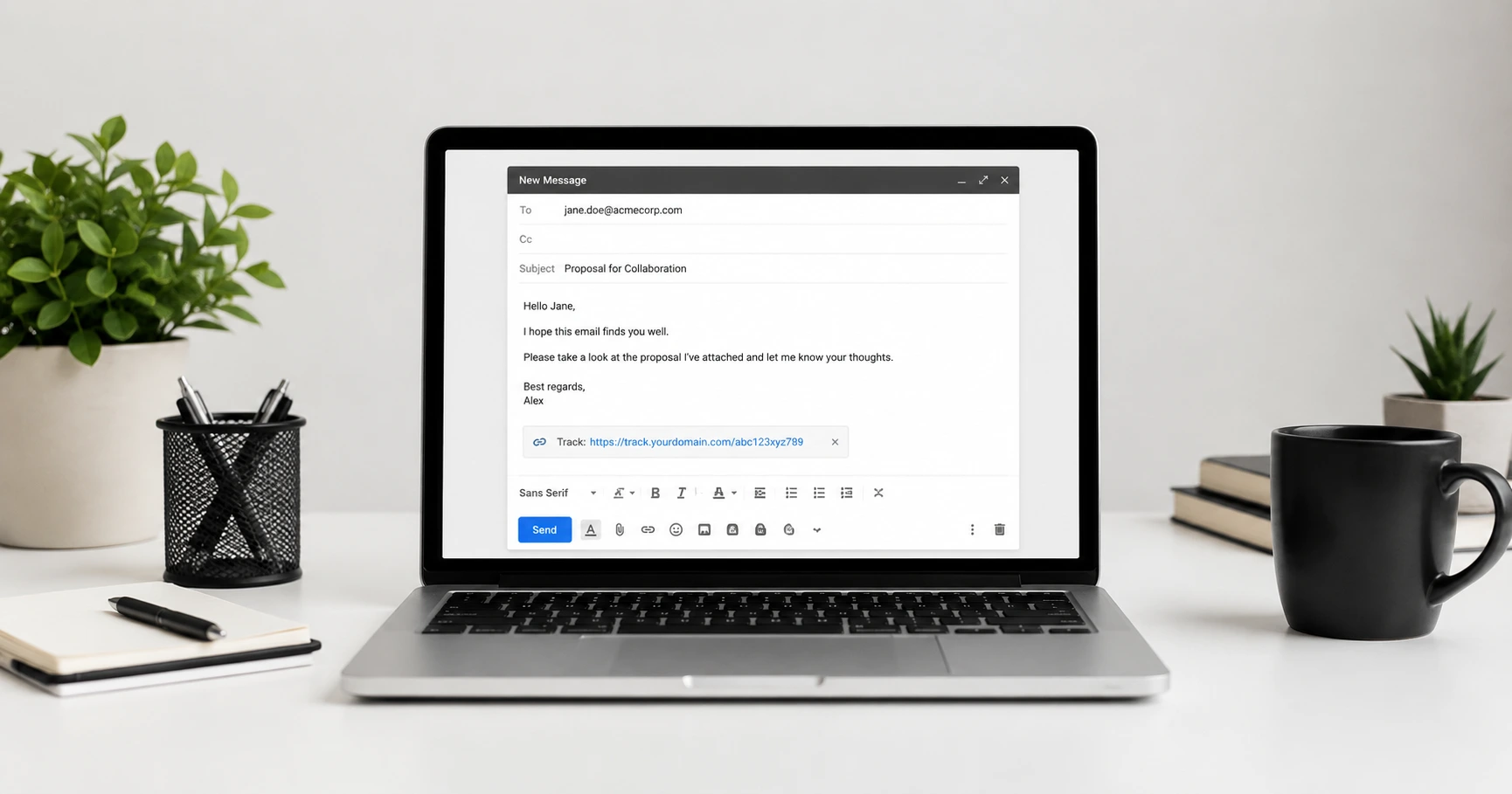
The Ultimate App Setup Guide: How to Add an Email Tracking Pixel Without Extensions
You can track an email in modern applications simply by using native 'Insert Image by URL' features.

Try MailPing for free
Generate an invisible, proxy-aware tracking link to confidently verify when your important emails are opened. No CRM required, zero inbox access.
Related Questions
Why does my email tracker show an open when I check my sent folder?
When you open an email in your sent folder, your email client downloads the embedded tracking pixel to display the message. To the tracking server, this request looks exactly like a recipient opening the email. A truthful tracking engine will log this valid server request as an open event.
How can I verify if my tracking pixel is working?
The most reliable method is to send a tracked email to a secondary, controlled inbox that you own (e.g., a personal webmail account). Open the email on a different device or network, and verify that the exact timestamp and IP address appear on your MailPing dashboard.