How to Track Emails in Mozilla Thunderbird
Executive Summary
Tracking emails in Mozilla Thunderbird is best achieved by natively inserting an invisible 1x1 tracking pixel via the "Insert Image" dialog. Because Thunderbird caters to privacy-conscious power users, bypassing invasive third-party add-ons ensures you retain complete control over your data and maintain absolute zero inbox access.
The Philosophy of Add-on Free Tracking
Mozilla Thunderbird users typically value open-source architecture, data ownership, and software minimalism. Installing a heavy CRM add-on just to see if a proposal was opened directly contradicts these principles. Most marketing extensions require broad read/write permissions to your local mail database, introducing unnecessary security vulnerabilities and bloated HTML code into your clean outgoing messages.
If you prefer email tracking without a CRM, you can leverage Thunderbird's native interface. Because true email tracking simply relies on loading a 1x1 remote web image, you can deploy a tracking pixel manually using standard HTML composition tools.
Step-by-Step: Inserting a Pixel in Thunderbird
Deploying a tracking link in Thunderbird takes only a few seconds once you know where the native tools are located. This process mirrors the logic detailed in our ultimate app setup guide:
- Generate your unique 1x1 tracking pixel URL from your tracking dashboard.
- Open Thunderbird and click Write to compose a new message.
- Draft your email completely, including your signature.
- Place your cursor at the very bottom of your email body.
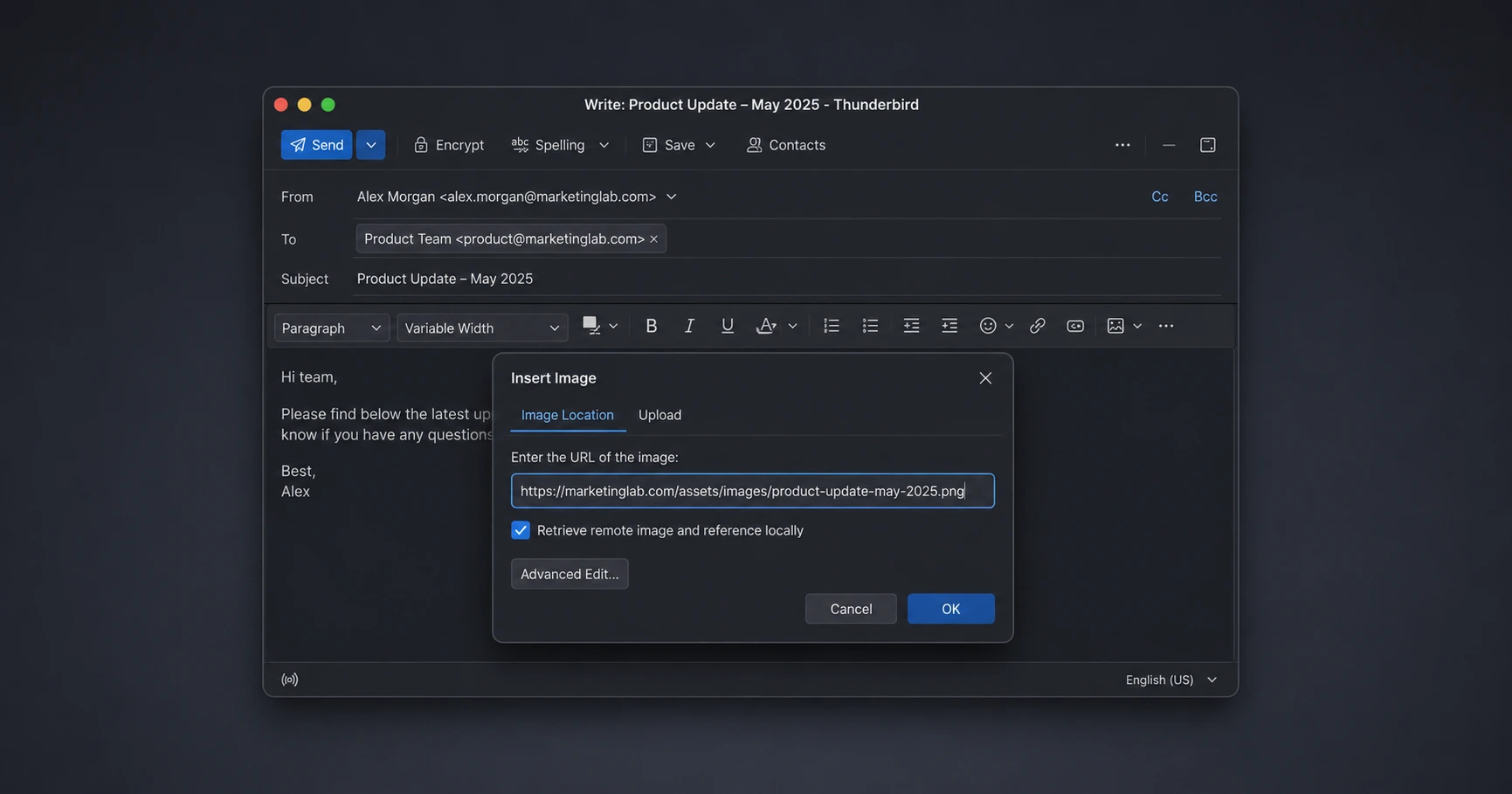
- In the composition toolbar, click Insert > Image.
- In the Image Properties window, paste your tracking URL into the Image Location field.
The Critical Step: Do Not Attach the Image
To ensure the tracking mechanism functions correctly, you must explicitly tell Thunderbird to load the image remotely rather than embedding it. In the Image Properties dialog box, right beneath the Image Location field, there is a checkbox labeled: "Attach this image to the message."
You must uncheck this box. If you leave it checked, Thunderbird will convert the tracking pixel into static base64 code and physically attach it to the email payload. The recipient's mail application will never request the image from the tracking server, meaning no "open event" will ever be logged. By unchecking it, you force the image to act as a remote beacon.
Perfect for Custom Domain Routing
Thunderbird is a powerhouse for professionals managing multiple custom domain aliases via direct IMAP and SMTP connections. Many lightweight tracking extensions are hardcoded to only inject pixels into standard webmail addresses (like Gmail or Yahoo) and fail entirely when confronted with a complex, self-hosted email setup.
By using a client-agnostic approach and manually dropping a MailPing tracking link into the native image dialog, your tracking works flawlessly regardless of your specific hosting provider, routing rules, or security infrastructure. You maintain the pristine privacy of your Thunderbird client while still gaining elite-level, proxy-aware engagement metrics for your 1-to-1 communications.
Explore the Email App Setup Cluster

The Ultimate App Setup Guide: How to Add an Email Tracking Pixel Without Extensions
You can track an email in modern applications simply by using native 'Insert Image by URL' features.

Try MailPing for free
Generate an invisible, proxy-aware tracking link to confidently verify when your important emails are opened. No CRM required, zero inbox access.
Related Questions
How do you track read receipts in Thunderbird?
You can request standard read receipts in Thunderbird by selecting 'Options' > 'Return Receipt' while composing an email. However, this triggers a visible pop-up that recipients frequently decline. The most reliable method is to insert an invisible remote tracking pixel using a tool like MailPing.
Can I track emails in Thunderbird without an add-on?
Yes, you do not need to install an add-on to track emails in Thunderbird. By utilizing the native 'Insert Image' feature and pasting a remote tracking pixel URL, you can confirm email delivery perfectly without giving a third-party extension access to your local data. MailPing's standalone tracking link is designed exactly for this workflow.