How to Track an Email in Gmail (Without Browser Extensions)
Executive Summary
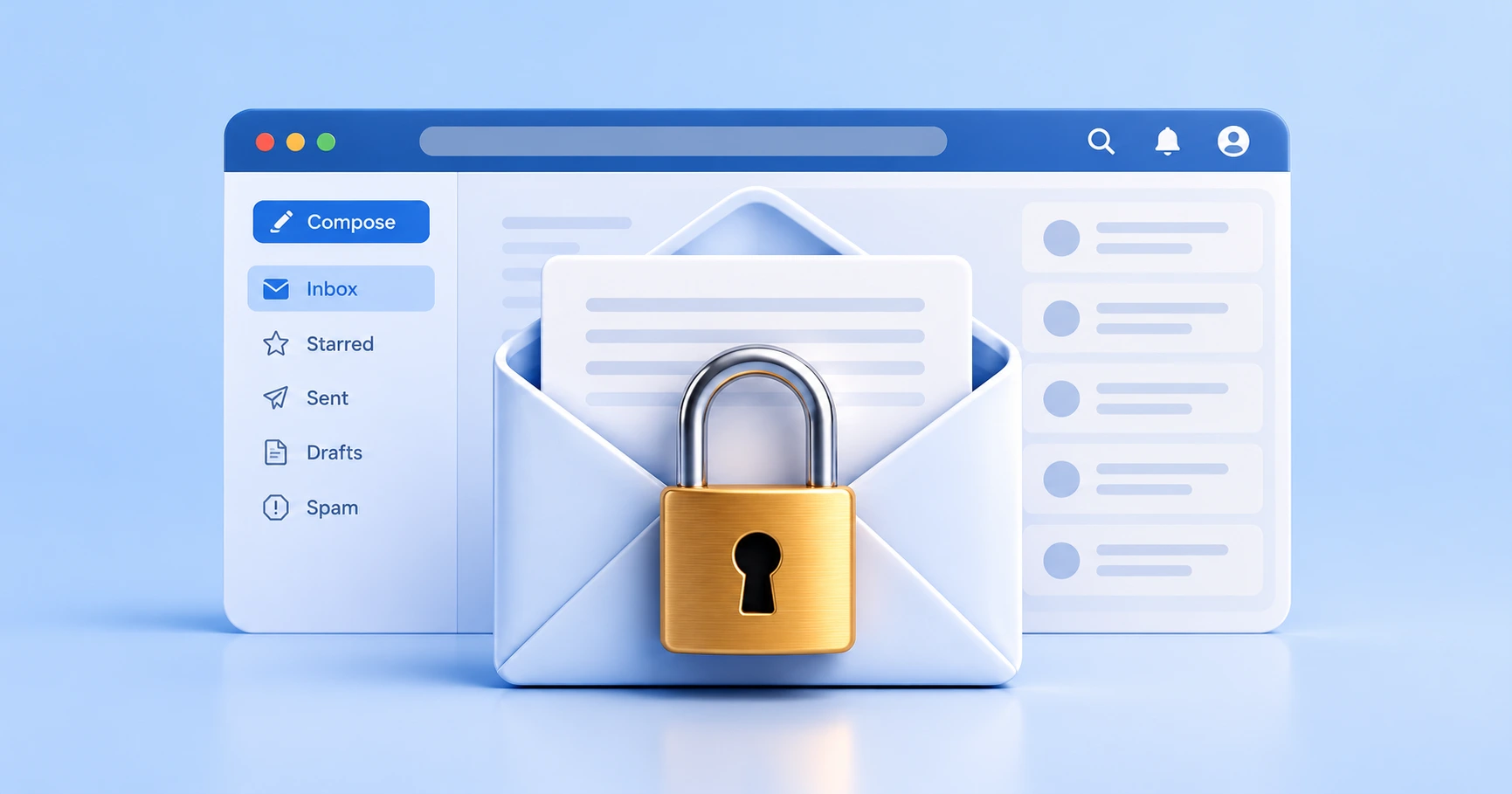
You can securely track email opens in Gmail without installing third-party browser extensions by using Gmail's native "Insert Photo by URL" feature. Most commercial email trackers force you to install bloated Chrome extensions that demand full read-and-write permissions to your inbox, creating a massive security vulnerability. By manually inserting an invisible tracking pixel, you bypass the need for invasive software, maintain 100% data privacy, and keep your inbox secure.
The Security Risk of Gmail Tracking Extensions
The vast majority of email tracking tools on the market operate as browser extensions, which presents a fundamental security flaw for professional users. To inject tracking links and read receipts into your emails, these extensions require you to grant them extensive OAuth permissions. If you read the fine print during installation, you will notice these apps request the ability to "read, compose, send, and permanently delete all your email from Gmail."
For freelancers, salespeople, and lawyers handling sensitive contracts or client communications, granting a third-party marketing company full access to your inbox is an unacceptable risk. Furthermore, browser extensions are notorious for bloating the Gmail interface, slowing down load times, and occasionally injecting unwanted branded signatures (e.g., "Tracked by [Company Name]") into your professional correspondence.
How Email Tracking Works Without Extensions
To track an email securely, you have to understand how the technology fundamentally works. Email tracking does not require complex software to be installed on your computer. At its core, it relies entirely on a standard web mechanic: loading an image.
A tracking pixel is simply a mathematically invisible, 1x1 pixel image hosted on a remote server. When you place this transparent image into the body of your email and hit send, nothing happens. However, the moment your recipient opens the email, their mail client (like Outlook, Apple Mail, or the Gmail app) reaches out to the server to download that tiny image. When the server delivers the image, it securely logs the exact timestamp and network data of the request. Because Gmail supports inserting images via URL natively, you can bypass extensions entirely and simply paste the image link yourself.
Step-by-Step: Tracking a Gmail Message Natively
By utilizing a standalone pixel generator, you can keep your inbox strictly private. Here is the precise workflow to track any individual email using the standard Gmail web application:
- Step 1: Generate a Tracking URL. Instead of installing an extension, use a privacy-first web dashboard to generate a unique tracking URL. MailPing provides a clean interface to create these links on the fly, ensuring the pixel is 100% unbranded and proxy-aware.
- Step 2: Compose Your Email. Open Gmail in your browser and write your email exactly as you normally would. Ensure your text is finalized.
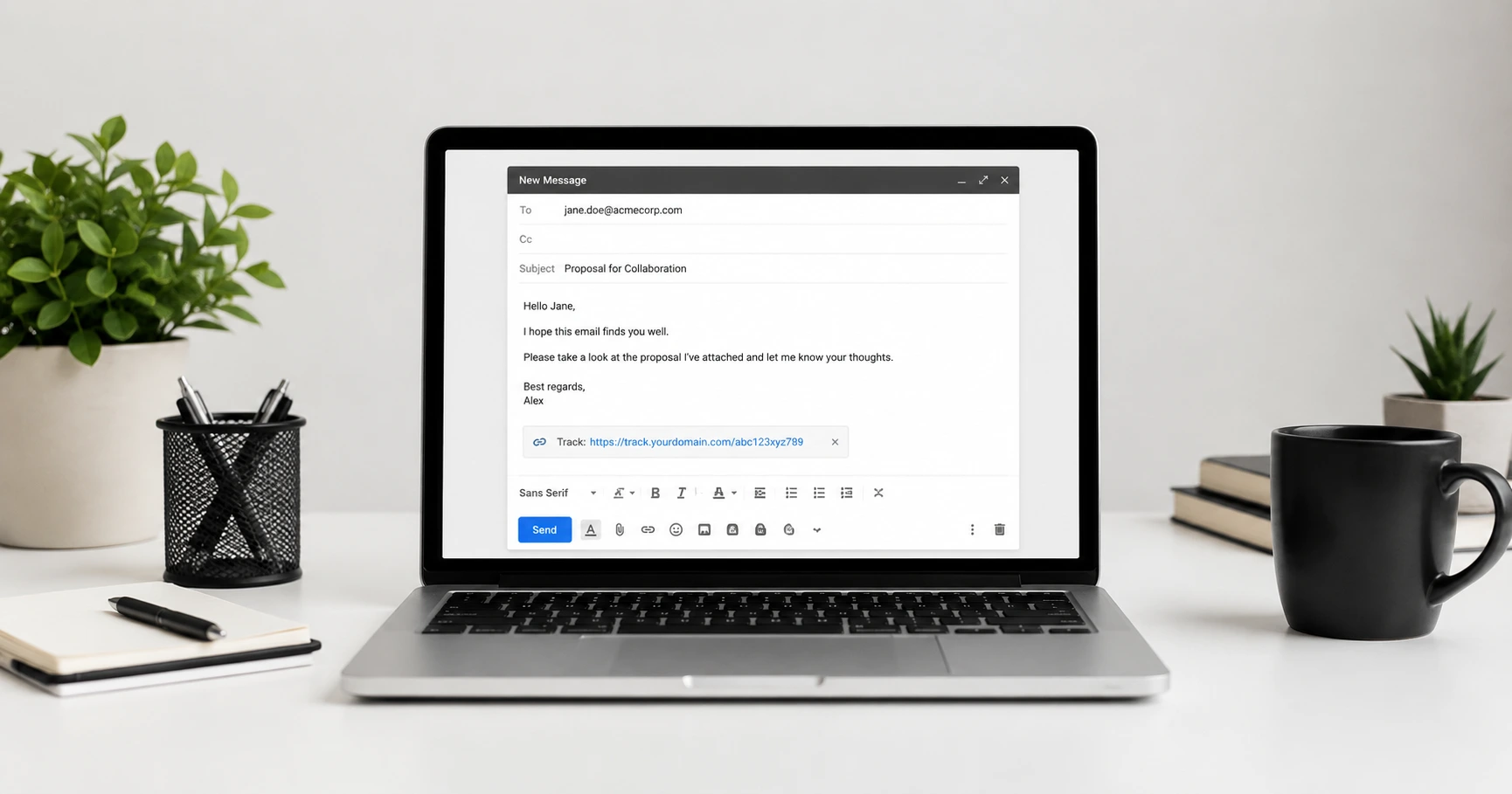
- Step 3: Access the Insert Photo Tool. At the bottom of the Gmail composer window, click the "Insert Photo" icon (it looks like a small square with mountains).
- Step 4: Insert via Web Address. In the modal that appears, select the "Web Address (URL)" tab. Paste your generated tracking link into the input field. A blank space will appear as the preview (this is your invisible 1x1 pixel). Click "Insert".
The pixel is now embedded in your email. It will not alter your formatting, and it is completely invisible to the recipient. When they open the message, your standalone dashboard will register the engagement.
Why Professional Tracking Beats Standard Read Receipts
You might wonder why you shouldn't just use Gmail's built-in "Request Read Receipt" feature (available to Google Workspace users). Standard read receipts rely on active consent. When the recipient opens your email, they are greeted with an intrusive pop-up asking if they want to send a confirmation back to you.
In a professional setting, this creates unwanted friction. Many users instinctively click "No," leaving you entirely in the dark regarding your proposal or invoice. Pixel tracking operates passively at the network level. It provides the sender with the logistical delivery confirmation they need without shifting the burden or awkwardness onto the recipient.
Explore the Email App Setup Cluster
The Ultimate App Setup Guide: How to Add an Email Tracking Pixel Without Extensions
You can track an email in modern applications simply by using native 'Insert Image by URL' features.

Try MailPing for free
Generate an invisible, proxy-aware tracking link to confidently verify when your important emails are opened. No CRM required, zero inbox access.
Related Questions
How do I track a Gmail message secretly?
To track a Gmail message secretly, you must use an invisible 1x1 tracking pixel rather than a traditional read receipt. Standard read receipts trigger a pop-up asking the recipient for permission, which alerts them immediately. By embedding an invisible tracking image URL directly into your email body, the tracking happens silently in the background when the email client loads the images. MailPing provides a mathematically invisible, 100% unbranded pixel that integrates seamlessly into Gmail without leaving a visible signature.
Is it safe to give a tracking extension access to Gmail?
Generally, no. Most tracking extensions require extensive OAuth permissions that grant third-party servers the ability to read, write, and even delete your personal emails. This introduces significant security and privacy risks, especially for professionals handling sensitive client data. A safer alternative is using a standalone tracking pixel generator that requires zero inbox access, keeping your data entirely under your control.